
- eIDs
- Vipps MobilePay
- Getting Started
- eIDs
- Guides & Tools
- Articles
- Age Verification
- Authorize URL builder
- Caller Authentication with CIBA
- Single Sign-on
- Work with metadata
- Creating test users
- App switching
- Choose language
- Custom styling
- Prefilled input fields
- Private key JWT authentication
- Get ready for production
- Pushed Authorization Requests (PAR)
- Telemetry & observability
- Integrations
- Reference
eIDs
Vipps MobilePay
Learn more about Vipps MobilePay token contents, how to create test users and how to gain access to production.
JWT/Token example
Test users
To test Vipps MobilePay, you need to install the Vipps app in a test version on your device. Follow the Vipps guide with instructions on how to set up test apps.
Creating a test user with Vipps MobilePay requires a test phone number and NIN/SSN. To request both, please send an email to orders@idura.eu and include "Vipps MobilePay test credentials" in the subject line.
Available data / scopes
Username is always made available.
For applications configured to use a static scope strategy, address, email, phone and birthdate are always made available.
You can also configure your tenant so it requests SSN as well.
For applications configured to use a dynamic scope strategy, the following scope tokens can be supplied: address, email, phone, birthdate and ssn (scope=openid phone email...).
Example (partial) authorize request with scopes
https://YOUR_SUBDOMAIN.idura.broker/oauth2/authorize?scope=openid phone ssn&...
Alternatively, you can send them in the login_hint
https://YOUR_SUBDOMAIN.idura.broker/oauth2/authorize?...&login_hint=scope:phone scope:ssn&...
which can be a useful if you are working with technology that does not let you control the scope value.
Ordering Vipps MobilePay
To start accepting real user logins, you must register with Vipps MobilePay as a merchant and receive a set of secret keys (client credentials).
Prerequisites for merchant registration
You must meet the following requirements to be registered as a merchant.
- Your company must be registered in your national business registry (Brønnøysundregistrene in Norway, Virk in Denmark, PRH in Finland).
- You must have a bank account in the country of registration associated with your company's organization number.
- The person signing the merchant agreement must possess a valid local eID (BankID in Norway/Sweden, MitID in Denmark, FTN in Finland).
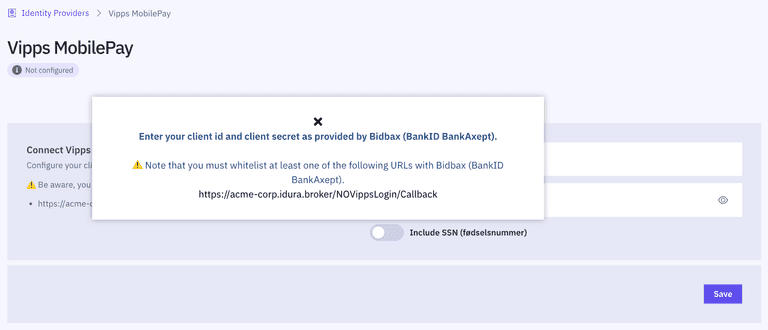
- Before you can order the client credentials from Vipps, you will need to have created a production domain in Idura Verify as described in the Getting ready for production guide. Once you have set up the production domain, go to the Identity sources section and take note of the URL displayed. It must be supplied during merchant registration.
Signing a merchant agreement
You can register as a merchant by signing an agreement at https://vippsmobilepay.com/en-NO/online/login.
Please consider the notes below when filling out the registration form:
- The field labelled "Navn på salgssted slik det vil vises for kunden i Vipps-appen" is to be filled out with the name that should appear in the Vipps app when a user logs in.
- In the section labelled "Organisasjonens kontaktinformasjon", please enter the name and details of the person who will receive the secret keys. This person will also be granted access to the Vipps administration portal.
Next steps
After you request client credentials by filling out the online agreement, your application is processed by Vipps. If you are approved, the designated contact person will receive the credentials.
Once you have received the client credentials, enter them into the Idura Verify management UI to configure your Vipps MobilePay integration.